Navigating the Platform
A map of the Merch Module UI — where things live and how to get around
Overview
Everything in MXP is managed through the Merch Module UI — a web application used by merchandisers, search operators, and administrators. This guide serves as a high-level map of the platform and explains how the major sections are organized.
Home Dashboard
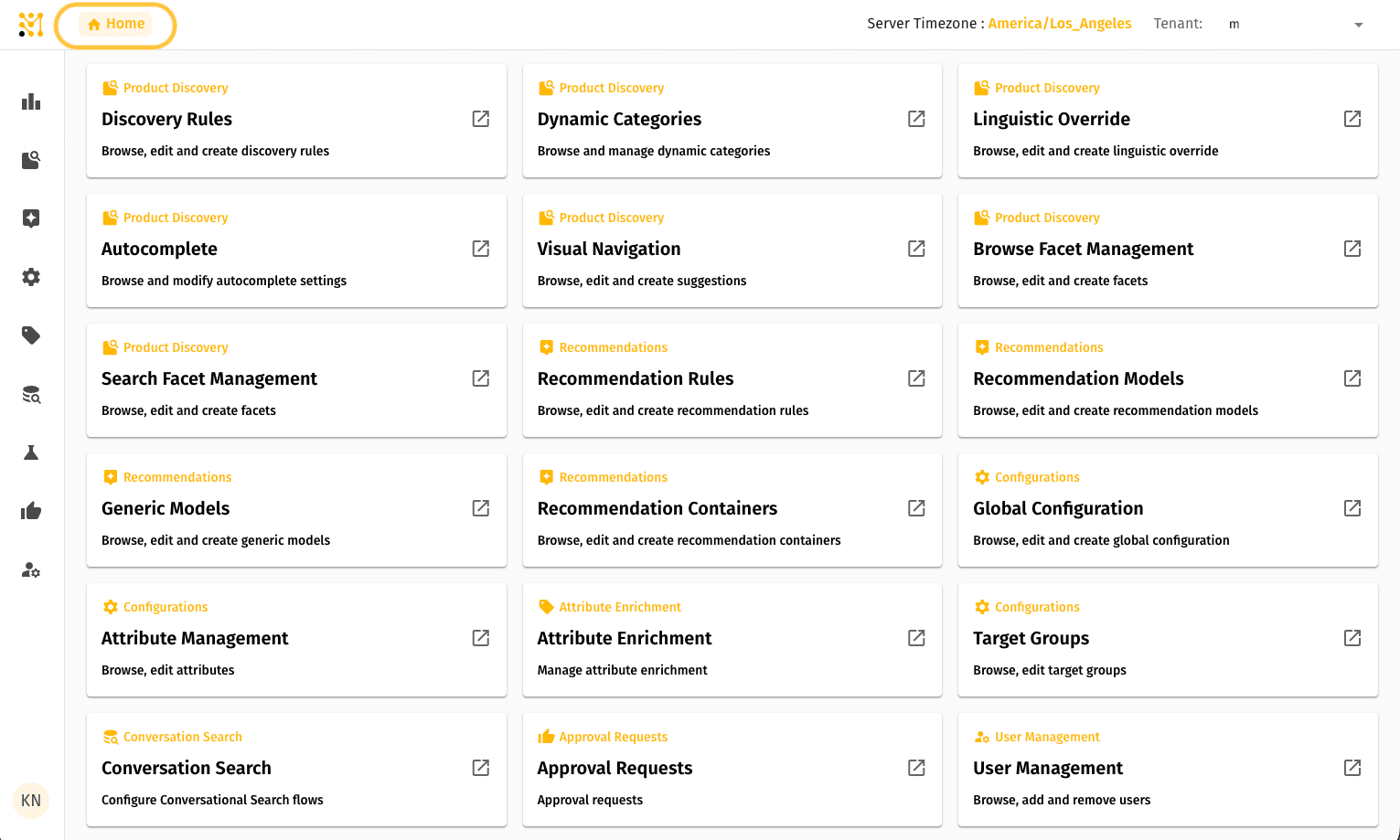
The first screen you see after logging in is the Home Dashboard. It displays a grid of tiles, each representing a major section of the platform.
Each tile:
- Belongs to a section group (such as Product Discovery, Recommendations, or Configurations)
- Provides direct navigation to that area of the platform
You can return to the dashboard at any time by clicking Home in the breadcrumb trail located at the top-left corner of any page.
Left Sidebar Navigation
The slim icon bar on the left side of every page is the primary navigation menu. Clicking an icon opens a sub-menu containing all pages within that section.
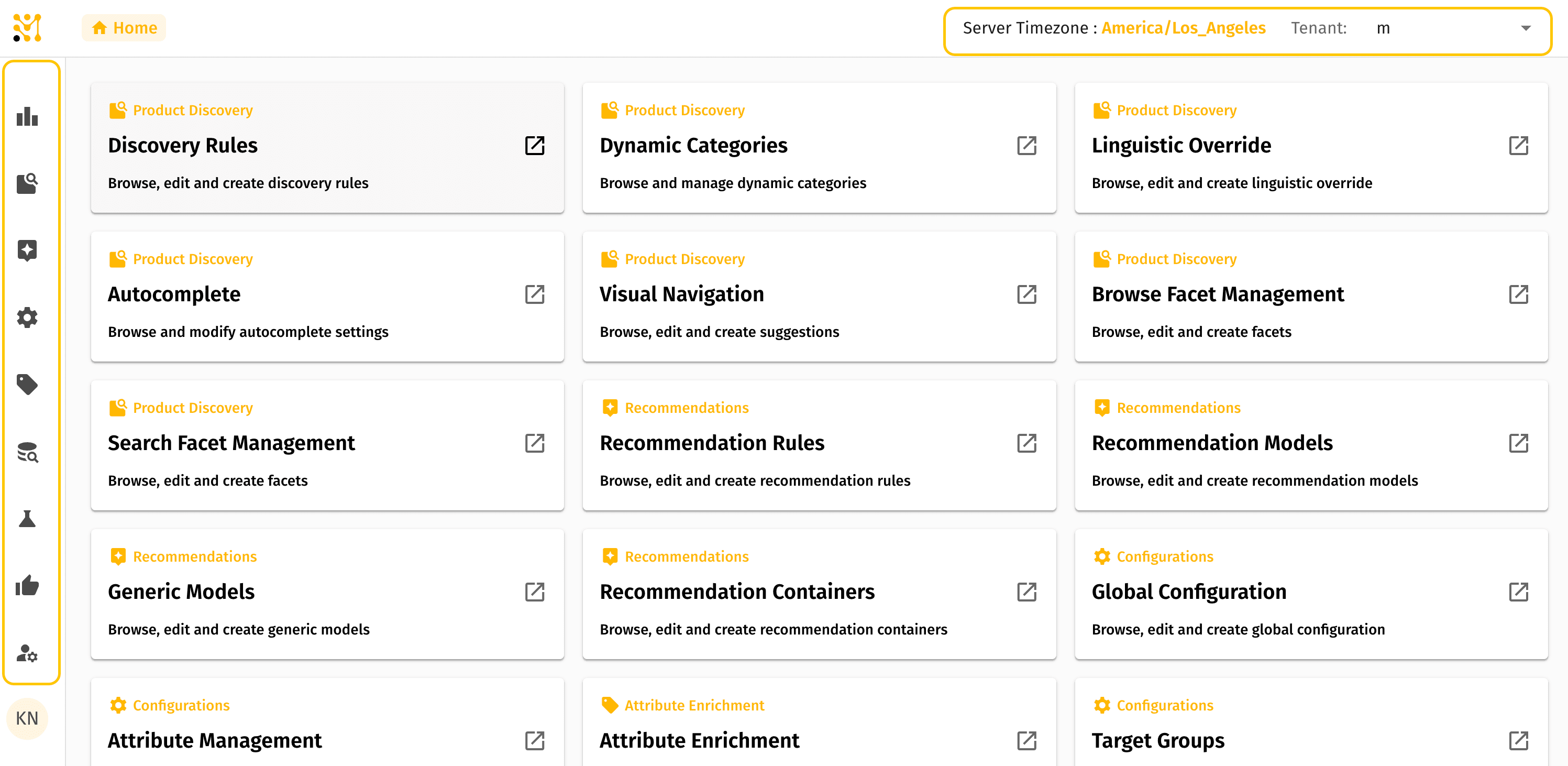
Sidebar icons and sections
| Icon | Section |
|---|---|
| Bar chart | Metrics |
| Product grid | Product Discovery |
| Star badge | Recommendations |
| Gear | Configurations |
| Tag | Attribute Enrichment |
| Search chart | Conversation Search |
| Beaker | Evaluation |
| Thumbs up | Approval Requests |
| Person | User Management |
Additional sidebar details:
- Your user initials appear at the bottom of the sidebar
- The top-right corner contains the Tenant selector dropdown and the current Server Timezone
- Use the tenant selector to switch between environments
Metrics
Sidebar icon: Bar chart
The Metrics section provides reporting and analytics views for search, browse, and product performance.
All metrics pages share common controls:
- Count Mode
- Group By (Daily / Weekly / Monthly)
- Date Range picker
- Download CSV export option
Search Metrics
Search Metrics tracks the search query funnel, including:
- Search volume
- Zero-result rate
- View rate
- Add-to-cart rate
- Purchase rate
- Revenue
Tabs:
- Summary — time-series KPIs
- Queries — query-level breakdowns
- Trending Queries — identifies rising search trends
Browse Metrics
Browse Metrics tracks category page performance using the same funnel metrics.
Tabs:
- Summary
- Categories
- Trending Categories
Product Metrics
Product Metrics focuses on individual product performance, including:
- Search appearances
- Click-throughs
- Add-to-cart activity
- Purchases
- Revenue contribution
The Trending Products tab within Search Metrics helps identify products gaining momentum.
See Metrics for a detailed guide on how to read each view and what to do with what you find.
Product Discovery
Sidebar icon: Product grid
The Product Discovery section contains the primary day-to-day merchandising tools.
Browse Facet Management
Controls:
- Which filters appear on category pages
- Filter ordering
- Category-specific overrides
The category tree sits on the left; the facet configuration panel sits on the right.
Search Facet Management
Functions similarly to Browse Facet Management, but applies specifically to search results pages. Use + Add Query to configure query-specific facet behavior.
Linguistic Overrides
Used to define synonym behavior for the search engine.
Supported override types:
- One-way synonyms
- Two-way synonyms
Management options:
- Manual UI management
- CSV import / export
Visual Navigation
Configures visual suggestions displayed while shoppers browse.
Autocomplete
Autocomplete contains three main tabs:
- Settings — auto-learning, trending queries, suggestion count, minimum trigger length
- Terms List — manage suggested terms, protected terms, and blocked terms
- Query Evaluation — test autocomplete behavior against specific inputs
Dynamic Categories
Dynamic Categories create virtual category pages powered by saved search queries instead of fixed product lists.
Discovery Rules
Discovery Rules override algorithmic ranking behavior.
Supported rule types:
- Boost
- Bury
- Pin
- Filter
Rules can be scoped to:
- Specific queries
- Query patterns
- Product sets
Each rule in the list displays its trigger, effective dates, priority level, and active status.
Recommendations
Sidebar icon: Star badge
The Recommendations section contains:
- Recommendation Rules
- Recommendation Models
- Recommendation Containers
Recommendation Rules
Recommendation Rules work similarly to Discovery Rules but apply to recommendation placements instead of search ranking.
Recommendation Models
This page manages recommendation models and their deployment. MXP RecSys supports five model types:
- Customers Also Viewed (CAV)
- Frequently Bought Together (FBT)
- Similar Items
- Good / Better / Best (GBB)
- GetBundle
Each row shows the model's type and serving status. Use Deploy Model / Undeploy Model to activate or deactivate a model.
Recommendation Containers
Recommendation Containers connect one or more recommendation models to a placement, such as a product detail page (PDP) or product listing page (PLP). This determines which model(s) serve each placement.
Configurations
Sidebar icon: Gear
The Configurations section manages tenant-wide settings and indexed attributes.
Global Configuration
Controls default platform behavior, including:
- Facet sorting
- Facet value limits
- Default product sorting
- Global facet list settings
Settings here apply globally unless overridden elsewhere.
Attributes (Attribute Management)
The master list of indexed product attributes.
Each attribute may be configured as:
- Indexable
- Facetable
- Searchable
- Retrievable
- Exact Match
- Filterable
If an attribute does not appear in Facet Management, check its configuration here first.
Attribute Enrichment
Sidebar icon: Tag
The Attribute Enrichment section manages AI-powered enrichment of product catalog attributes. It automates the generation of missing or incomplete attribute values using machine learning models and surfaces them for human review before publishing to the catalog.
Enrichment List
The main list of enrichment tasks. Each entry displays the attribute being enriched, its current status, and the number of products with pending AI-generated suggestions.
Review & Publish
After an enrichment run completes, use this view to inspect AI-generated attribute values product by product. Each suggestion can be accepted or rejected individually before being published to the catalog.
Enrichment Configuration
Defines enrichment behavior per attribute. Settings include the source fields used for inference, the confidence threshold for automatic acceptance, and the assigned AI model.
Enrichment Runs
Displays a log of completed and in-progress batch enrichment executions. Each run shows the start and end timestamps, the number of products processed, and success and error counts.
Conversation Search
Sidebar icon: Search chart
Conversation Search is used to configure guided conversational search experiences.
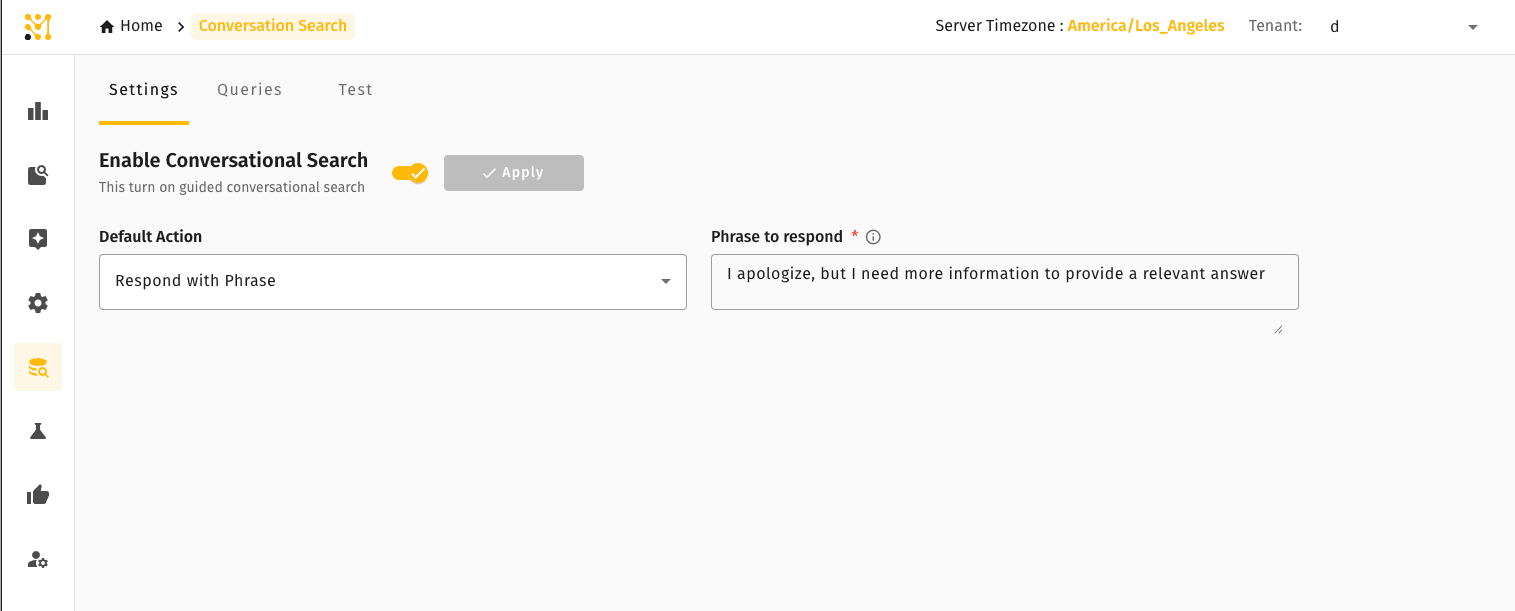
Tabs:
- Settings — enable or disable conversational search and define fallback phrases
- Queries — build conversational search flows
- Test — validate conversational flows before publishing
Evaluation
Sidebar icon: Beaker
Evaluation functions as a search testing and debugging workspace.
Core features:
- Execute test queries
- View ranked results exactly as shoppers see them
- Inspect active facets
Right-side panels:
- Rules — displays rules triggered by the query
- Linguistics — shows query interpretation and linguistic processing
- Global — displays active global settings affecting results
Use Add Environment to compare configurations side-by-side.
Approval Requests
Sidebar icon: Thumbs up
Approval Requests manages workflows requiring review before publication. This commonly applies to:
- Linguistic overrides
- Discovery rules
Sections:
- Pending Approvals — items awaiting review
- Approval History — complete audit log showing requestor, reviewer, and outcome
- My Request History — tracks requests submitted by the current user
User Management
Sidebar icon: Person
The Users page displays all users with access to the current tenant.
User information displayed:
- Name
- Role
Available roles:
- Admin
- System Viewer
- Rule Publisher
- Models Editor
To add a new user, click + New User in the top-right corner.
Platform features available everywhere
Breadcrumb navigation
Breadcrumbs appear at the top of every page and display your current location. Example: Home > Section > Page. Each breadcrumb segment is clickable for quick navigation.
History Log
Most list pages include a Show History Log button. The History Log provides:
- Audit history
- User changes
- Timestamp tracking
Tenant selector
The tenant dropdown in the top-right corner changes the active tenant context without reloading the page. All actions are scoped to the currently selected tenant.
Search and filters
Pages such as Discovery Rules, Linguistic Overrides, and Users include built-in search and filtering tools that update results instantly without requiring a page refresh.