Configurations
No-code, tenant-scoped control panel for search defaults, attribute behavior, and audience-specific configurations
What it solves
Managing search and merchandising behavior across a multi-tenant e-commerce platform typically requires engineering involvement every time a default needs to change — whether that is the order facets appear in, which product attributes are searchable, or how results are sorted for a specific customer segment.
Configurations eliminate that dependency. They give business and operations teams a no-code, tenant-scoped control panel to:
- Define the default sorting and faceting behavior for all search results pages
- Control which product attributes act as facets, are indexed for search, and are returned in API responses
- Create named audience segments (Target Groups) and attach different configurations to them — so VIP shoppers, admins, or A/B test cohorts can each get a tailored search experience
- Review the full history of every change and roll back to any prior state without engineering support
All settings are isolated per tenant, so changes for one brand or environment never affect another.
When to use it
Search and facet defaults
- You need to change the default sort order of search results (e.g. switch from Relevancy to Alphanumeric)
- You want to adjust the number of facets or facet values shown on results pages
- You need to define or reorder the facets that appear by default (e.g. promote Color above Price)
- You want to suppress dynamically generated facets for specific contexts
Attribute behavior
- A product attribute should start (or stop) appearing as a filter facet
- You need to configure custom price range buckets (e.g. $0–$5, $5–$15, $50–$200)
- An attribute should be hidden from the storefront without removing it from the index
- You want to make an attribute searchable or stop it being returned in API responses
Audience segmentation
- You want to serve a different default facet list or sort order to a specific user group
- You are running an A/B test that requires different search settings per cohort
- Admin users need access to additional or different facets compared to regular shoppers
Governance and rollback
- You need to audit who changed a configuration and when
- A recent change caused unexpected search behavior and you need to restore a prior state
Key concepts
| Term | Definition |
|---|---|
| Configuration | A named record that bundles all search and facet defaults. Multiple configurations can exist per tenant; each is assigned a Type. |
| Configuration Type | Global — applies platform-wide search defaults. Recommendation — scopes settings to the recommendation engine. |
| Facet | A filter dimension shown to shoppers on the search results page (e.g. Color, Price, Fit). Sourced from product attributes. |
| Facet Type | Range — a numeric facet rendered as price buckets or a slider. Term — a discrete facet rendered as checkboxes. |
| Default Facet List | The ordered list of attribute keys that define which facets appear by default and in what order. |
| Hide Dynamic Facets | A list of dynamically generated facets that should be suppressed from the results page for this configuration. |
| Boost/Bury Conditions | Rules that promote or demote products based on attribute values or item newness, without changing the base sort order. |
| Filter Conditions | Persistent query filters applied to all results within a configuration — for example, to exclude out-of-stock items globally. |
| Attribute | A product property stored in the search index (e.g. price, attr_color). Its behavior — facetable, searchable, retrievable — is governed per record in Attribute Management. |
| Facetable | Whether the attribute appears as a filter panel on the storefront (Yes / No). |
| Searchable | Whether the attribute value is included in the full-text search index. |
| Retrievable | Whether the attribute value is returned in search API responses. |
| Target Group | A named user segment defined by one or more request parameter conditions (e.g. admin=true). When linked to a configuration, that configuration is applied only for matching requests. |
| Priority | The order in which Target Groups are evaluated when a request could match multiple groups. Higher priority groups win. |
| Context Path | An optional URL path or pattern that further scopes a Target Group to a specific section of the site. |
| Version History | A full audit log of every Create and Update action on a configuration record, including the user and timestamp. Any version can be restored via Load this change. |
| Tenant | An isolated environment or brand instance. All configuration data is fully isolated between tenants. |
How it works
Configurations are composed of three interconnected sub-features — Global Configuration records, Attribute Management, and Target Groups — all accessed from Home → Configurations.
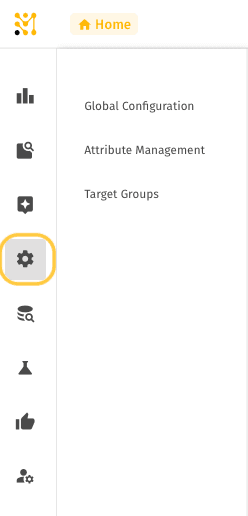
Global Configuration records
Viewing configurations
The list page shows all existing configurations as cards. Each card summarizes the key defaults at a glance: facet sorting, product sorting, facet max number, and facet values limit. Clicking a card opens a read-only detail panel including the full Default Facet List.
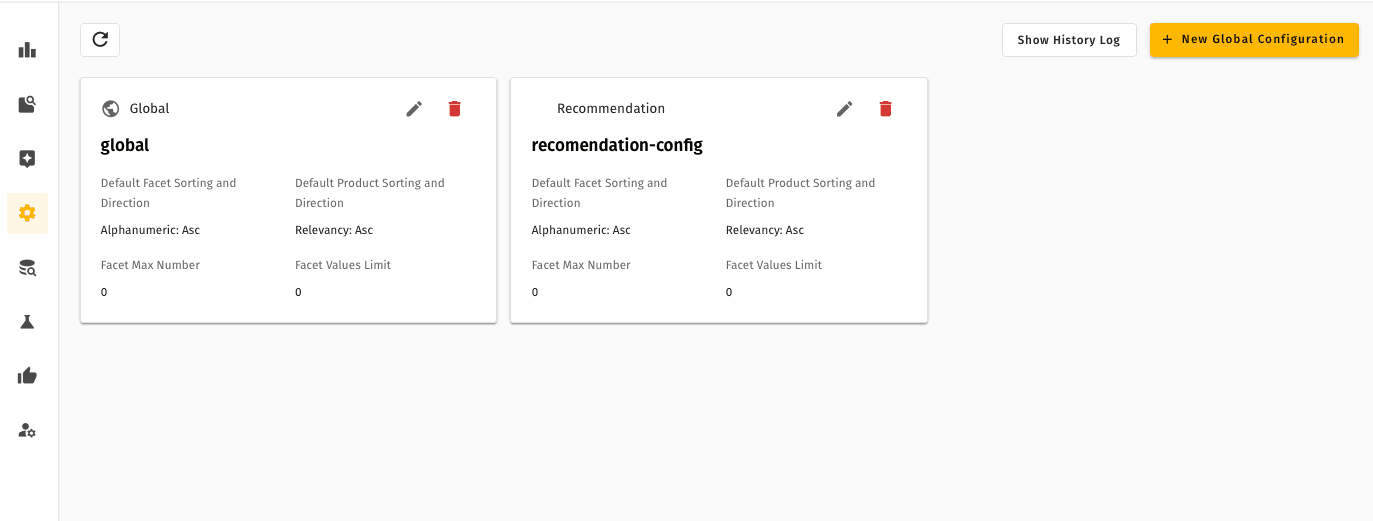
Creating or editing a configuration
A right-hand slide-in panel is used for both operations. Fields include:
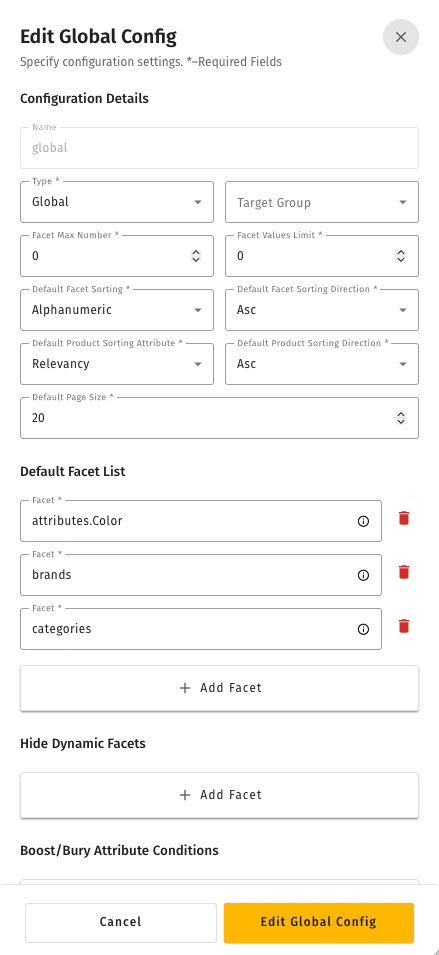
| Field | Details |
|---|---|
| Name * | Unique text identifier for the record (e.g. global, rec_config) |
| Type * | Global or Recommendation |
| Target Group | Optional — links this configuration to a user segment |
| Facet Max Number * | Maximum number of facets returned on results pages |
| Facet Values Limit * | Maximum number of values shown per facet |
| Default Facet Sorting * | e.g. Alphanumeric |
| Default Facet Sorting Direction * | Asc or Desc |
| Default Product Sorting Attribute * | e.g. Relevancy |
| Default Product Sorting Direction * | Asc or Desc |
| Default Page Size * | Products returned per page |
| Default Facet List | Ordered list of attribute keys — add via + Add Facet, remove via the bin icon |
| Hide Dynamic Facets | Attribute keys to suppress from the dynamic facet panel |
| Boost/Bury Attribute Conditions | Attribute-based ranking rules — add via + Add Attribute Condition |
| Boost/Bury Newness Conditions | Recency-based ranking rules — add via + Add Newness Condition |
| Filter Conditions | Persistent global query filters — add via + Add Filter Condition |
Version history and rollback
Show History Log (top-right of the list view) opens a paginated table of every change across all configuration records. Columns: Version, Change Type (Create / Update), ID, Name, User Updated, Time Updated. Each row has a Load this change button that restores that version as the active configuration.
Attribute Management
Viewing attributes
The attribute table lists every configured product attribute with its type and three boolean flags — Facetable, Searchable, Retrievable — shown as visual Yes/No indicators. Status (Shown / Hidden) controls storefront visibility. The view can be toggled between list and grid layouts and filtered by name.
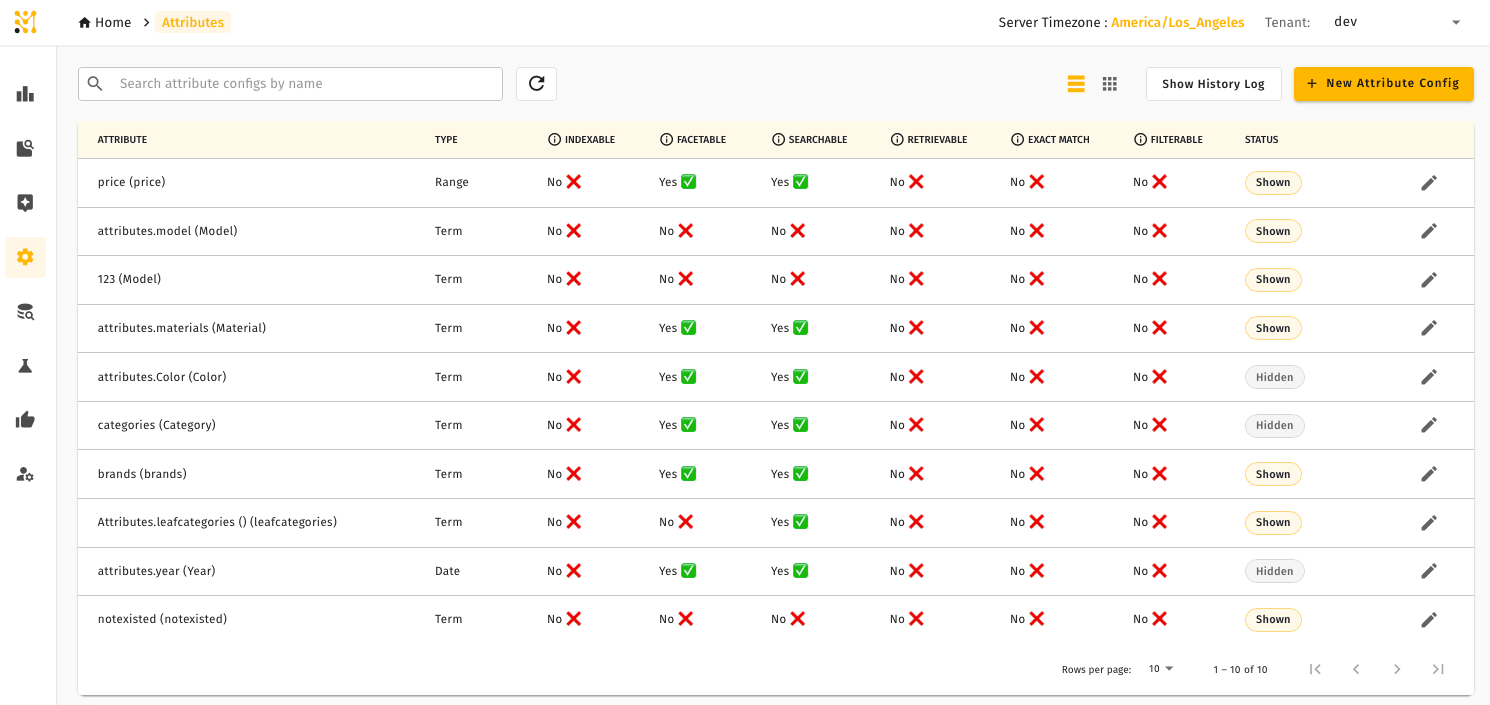
Editing an attribute
Clicking the edit icon opens a right-hand panel. The upper section sets the four flags and status toggle. Below that, the Facet Details section configures how the attribute is presented as a facet:
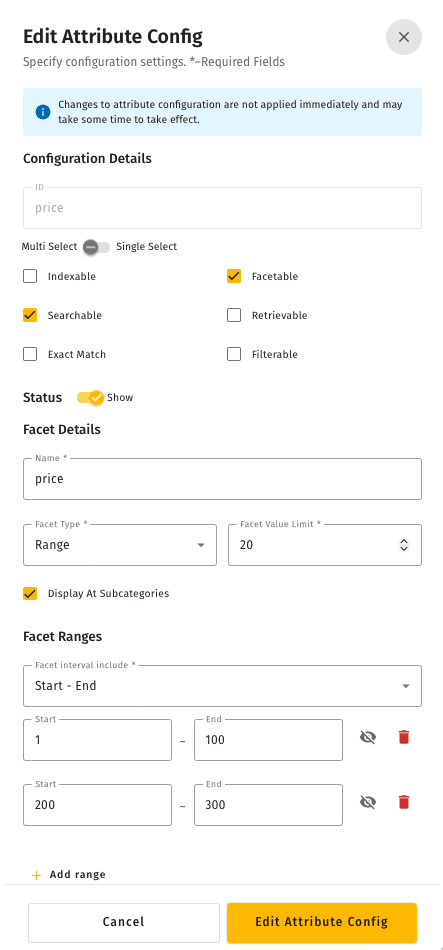
- Name — the display label shown to shoppers (e.g. Price, Color)
- Facet Type — Range or Term
- Facet Value Limit — maximum values shown for this specific facet
- Display At Subcategories — if checked, the facet also appears on category/browse pages
For Range-type attributes, a Facet Ranges section appears below Facet Details. Each range is defined by a Start and End numeric pair. Individual ranges can be hidden (eye icon) or deleted without affecting the others. New ranges are added via + Add range.
Target Groups
Viewing groups
Target Groups are displayed as cards showing the group name, priority badge (High / Medium / Low), and the parameter key-value pairs that define membership. All groups are tenant-specific.
Creating or editing a group
The Edit Target Group panel contains three sections:
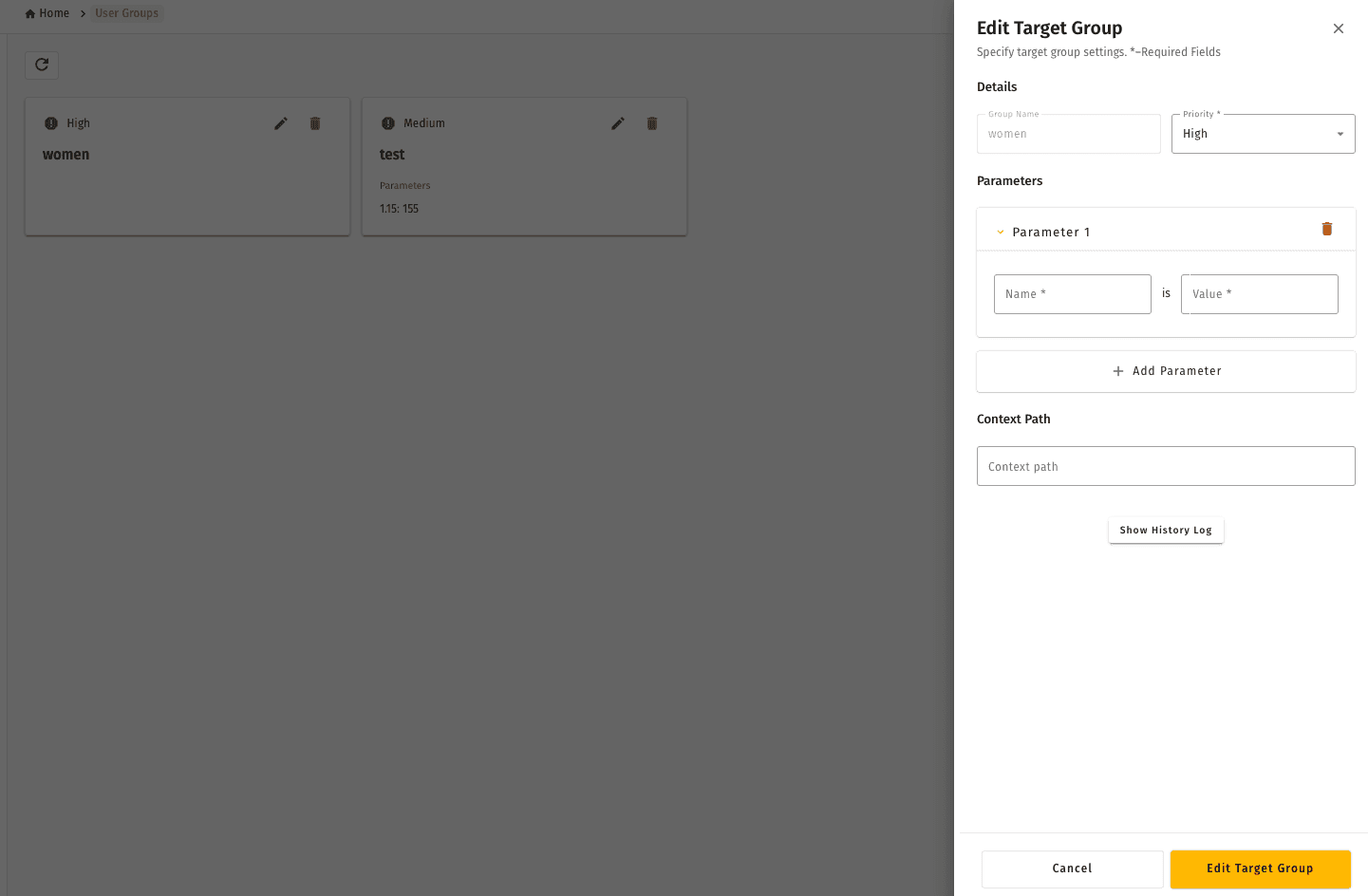
- Details — Group Name and Priority (required)
- Parameters — One or more
Name is Valueconditions. Multiple parameters are AND-ed together. Add rows with + Add Parameter - Context Path — Optional URL pattern to restrict the group to a specific part of the site
The panel also includes a Show History Log button to inspect the version history for that specific group inline.
Linking a group to a configuration
Once a Target Group exists, open the relevant Global Configuration record for editing and select the group from the Target Group dropdown. From that point, any request whose parameters match the group's conditions will receive that configuration instead of the default one.
Tenant switching
The active tenant is shown in the top-right corner. Clicking it reveals a dropdown of all available tenants. Selecting a different tenant reloads the current page's data for that tenant without navigating away — useful for comparing or mirroring settings across environments.
Quick example
Scenario: the merchandising team wants to add custom price range buckets for the oreilly-autoparts tenant so that shoppers can filter by $0–$5, $5–$15, $16–$50, and $50–$200. They also want admins to see an additional Relevancy sort by default.
Configure the price attribute ranges
- Go to Configurations → Attribute Management.
- Find
price(Price) in the list and click the edit icon. - Confirm Facetable is checked and Facet Type is Range.
- Under Facet Ranges, verify or add four Start / End pairs: 0–5, 5–15, 16–50, 50–200.
- Click Edit Attribute Config to save.
Create a Target Group for admins
- Go to Configurations → Target Groups.
- Click + New Target Group.
- Set Group Name to
adminsand Priority to High. - Under Parameters, add one condition: Name =
admin, Value =true. - Leave Context Path blank (applies site-wide).
- Click Save.
Create a configuration for admins
- Go to Configurations → Global Configuration.
- Click + New Global Configuration.
- Name it
admin_config, Type = Global, Target Group =admins. - Set Default Product Sorting Attribute = Relevancy, Direction = Asc.
- Add the same Default Facet List as the global record (
attr_color,price,attr_connectorger,attr_fit,category_path_flat). - Click Edit Global Config to save.
From this point, any request that includes the parameter admin=true will be served the admin_config configuration. All other shoppers continue to receive the global configuration. No engineering changes are required.
In Lightweight mode, Configurations is reduced to attribute management and platform-wide configuration moves to Serving Configuration — see what differs.
Related pages
- Product Discovery — search, browse, and merchandising rules that build on these defaults
- User Management — manage who can edit configurations within a tenant
- Lightweight Mode — how configuration works in a Lightweight deployment