Configuration
Configure per-product-type enrichment attributes, prompts, and validation rules.
What it solves
Every product type in your catalog has a different set of attributes that matter for search and discovery. A backpack needs capacity and fitsLaptopSize. A running shoe needs gender, activity, and sizeType. A jacket needs material, fit, and weatherResistance.
Configuration is where you define exactly what the AI should enrich — and how — for each product type. You control which attributes to extract, where they live in your product data structure, what data type they should be, and how much context the AI gets to work with. No code changes required.
When to use it
- New product type onboarding — before running enrichment on a product type for the first time, create its configuration so the AI knows what to look for
- Adding attributes — when you want to start enriching a new attribute for an existing product type, add it to the configuration and it will be picked up on the next run
- Attribute discovery — use the Generate more from AI button to let the system analyze your catalog and automatically propose enrichment configuration for attributes worth targeting, based on current fill rates and shopper filter usage
- Previewing before a run — test how the AI will enrich specific attributes against a real product before committing to a full run
- Tuning accuracy — if enrichment results for a product type are consistently off, improving the product type description or regenerating prompts usually fixes it
- Disabling an attribute — when you want to stop enriching a specific attribute without losing its configuration for future use
Configuration changes take effect on the next enrichment run. They don't retroactively change values that have already been published.
Key concepts
Product type description — a natural language description of the product type, written in plain English, used as context when the AI generates attribute values. This is one of the highest-leverage fields in the configuration: a vague description produces vague results, while a specific one that names typical materials, use cases, size ranges, and brand conventions produces accurate, well-formatted values.
Example — weak description: "This is a backpack."
Example — strong description: "Men's backpacks primarily used for daily commuting, school, or travel. Typically accommodate laptops (13–17 inches), with capacities between 15–40 liters. Common materials include nylon, canvas, and leather. Key attributes for shoppers include laptop fit, water resistance, and carrying system."
Attribute label — the human-readable name for the attribute shown in the Review & Publish screen (e.g., color, brands, conditions).
Attribute path — the dot-notation path to the field in the product JSON where the enriched value will be written. For example, attributes.color writes to the color key inside the attributes object. If the field doesn't exist yet in a product, it is created. Use the same path conventions as your existing catalog schema.
{
  "id": "PROD-001",
  "title": "Classic Blue Denim Jacket",
  "attributes": {
    "color": "Blue"
  }
}
Value type — the expected data type for the attribute. This controls how the AI structures its output and how values are stored in the catalog. All attributes are multi-value by default — only certain system attributes such as title and description hold a single value.
| Value type | When to use | Example |
|---|---|---|
string | Text attributes | "Blue", "Cotton", "M" |
number | Numeric attributes | 15 (capacity in liters), 10 (shoe size) |
Required — marks an attribute as mandatory for the product type. Required attributes are flagged in quality scoring if they remain empty after enrichment.
Enabled toggle — each attribute has an on/off toggle. Disabling an attribute stops it from being enriched in future runs without deleting the configuration. Already-published values for that attribute are not affected — they remain in the catalog until overwritten or manually reverted.
Configuration overview — a sidebar showing a live summary of the current product type configuration: total attributes, how many are enabled, how many are required, and a progress bar showing the percentage currently enabled. When two or more attributes are selected via checkboxes, the sidebar activates two bulk actions:
- Generate Prompts — regenerates the AI prompts and validation guidance for the selected attributes based on the current product type description and catalog statistics. Run this after updating the product type description or when accuracy for specific attributes needs improvement. Up to 5 attributes per run.
- Preview — runs a one-off enrichment for the selected attributes against a single real product of your choice. Results are not saved to the catalog. Use this to test how the AI will behave before triggering a full run. Up to 5 attributes per run.
How it works
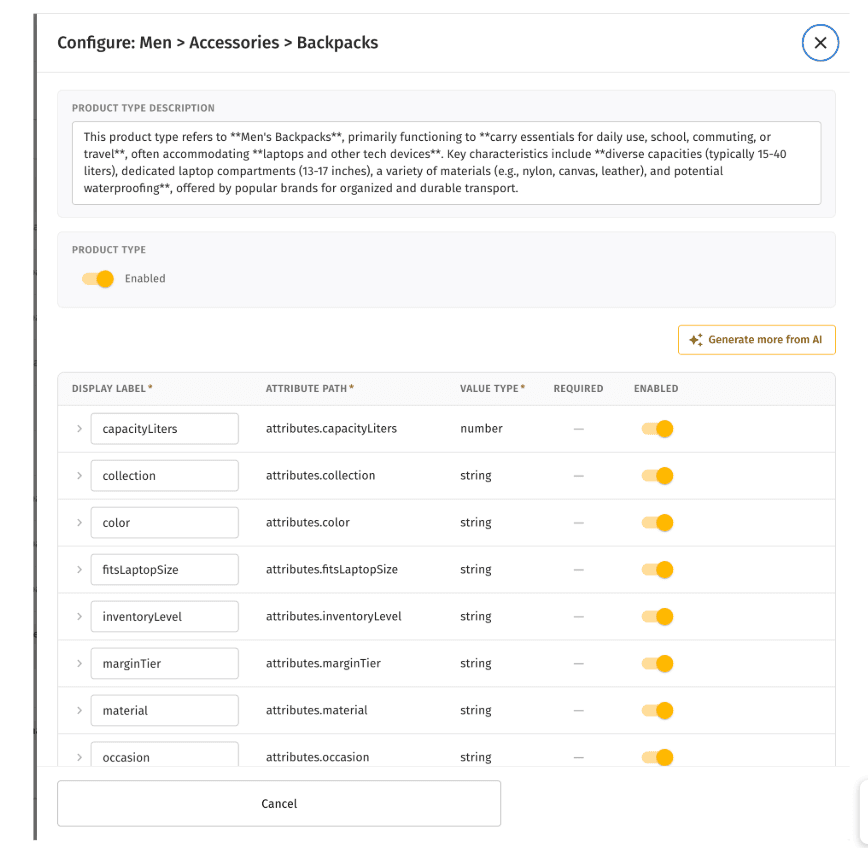
Each product type has its own configuration panel, accessible from the Attribute Enrichment section. The panel shows a product type description field, a product type enabled toggle (disabling this stops enrichment for the entire product type), and an attribute table.
The attribute table columns are:
| Column | What it shows |
|---|---|
| Label | Human-readable attribute name |
| Path | Dot-notation field path in the product JSON |
| Type | string or number |
| Required | Whether the attribute is mandatory for this type |
| Enabled | On/off toggle for this attribute |
The Configuration overview sidebar on the right shows a live summary as you make changes. Selecting attributes via the checkboxes activates the Generate Prompts and Preview bulk actions.
Changes to the configuration are saved immediately. The next scheduled enrichment run — or a manually triggered run — will apply the updated configuration.
How to configure a product type
Set up a new product type
Open Attribute Enrichment → Configuration.
Select the product type you want to configure from the list. If the product type doesn't appear, it hasn't been added to the tenant configuration yet — contact your implementation team.
Write a product type description. Be specific: include typical use cases, size or capacity ranges, common materials, and any naming conventions your catalog uses.
Make sure the Product Type toggle is set to Enabled.
For each attribute you want to enrich, fill in the label, path, type, and required flag, then enable the toggle.
Select the attributes you want to test, then click Preview to run a one-off enrichment against a real product and verify the output before committing.
Save the configuration. It takes effect on the next enrichment run.
Preview enrichment before a run
In the attribute table, select up to 5 attributes using the checkboxes.
Click Preview in the Configuration overview sidebar.
In the Preview modal, search for a product to test against and select it.
The preview runs a live enrichment for the selected attributes against that product. Review the AI-generated values — results are not saved.
If the results look off, update the product type description or regenerate prompts using Generate Prompts, then preview again before running enrichment.
Add a new attribute to an existing product type
Open the configuration panel for the product type.
Click Add attribute at the bottom of the attribute table.
Fill in the label, path, and type. Set Required if appropriate.
Enable the toggle and save.
Use the run comparison view to see how the new attribute configuration would affect enrichment results compared to the previous run. This helps catch misconfigured paths or incorrect value types before they affect the live catalog.
Regenerate prompts for an attribute
Select the attribute using its checkbox in the attribute table.
Click Generate Prompts in the Configuration overview sidebar.
The AI regenerates the prompts and validation guidance for that attribute based on the current product type description and catalog data.
Run a Preview to verify the updated prompts produce the expected output before triggering a full run.
Disable an attribute
Find the attribute row in the configuration panel.
Toggle Enabled to off and save.
The attribute will be skipped in future runs. Existing published values are not changed.
Improve enrichment accuracy for a product type
If enrichment results for a product type are consistently inaccurate or missing values:
Review and expand the product type description — add specifics about materials, size conventions, use cases, or brand patterns that are common in that category.
Select the underperforming attributes and click Generate Prompts to regenerate their AI guidance.
Use Preview to test the updated configuration against a real product before re-running enrichment.
Check the attribute path for any misconfigured attributes. A wrong path means values are being written to a field that isn't indexed.
Check the value type — if a multi-value attribute is set to string, only one value will be written even when multiple are found.
Quick example
A team onboarding a new tenant sets up configuration for the Food > Milk Product product type. They write a product type description covering typical dairy products, consumption contexts, and common packaging materials. They enable material, brands, conditions, and sizes as attributes, marking conditions and sizes as required.
Before running enrichment, they select conditions and materials, click Preview, and search for a test product. The preview returns sensible values — they save the configuration and trigger the next enrichment run.
Attribute Enrichment is part of the full MXP platform and is not available in Lightweight mode.
Related pages
- Review & Publish — approve, edit, or revert AI-generated values after a run
- Enrichment Runs — trigger a manual run and monitor progress
- Attribute Enrichment — feature overview and how the two-phase validation model works