Enrichment Runs
Monitor enrichment run history, job status, and per-run statistics.
What it solves
The Enrichment Runs screen is the primary tool for enrichment engineers monitoring and operating the pipeline. It provides a full historical view of all pipeline executions for the tenant — so engineers always know the state of the catalog data, not just whether enrichment is configured.
Investigation requests typically originate outside the engineering team: a merchandiser notices a missing attribute in the storefront, a QA engineer flags a product that wasn't updated after a catalog change, or a product owner asks why enrichment coverage dropped for a category. This screen is where engineers go to diagnose and respond to those requests.
When to use it
- Responding to a QA or merchandiser report — a missing or stale attribute was flagged; check whether the relevant run completed and whether the product was included
- Verifying a run completed — confirm that a scheduled or API-triggered run finished as expected
- Auditing enrichment activity — review run history over a date range for reporting or compliance purposes
- Troubleshooting a failed run — find the error, understand what was affected, and re-trigger the run
Key concepts
Run — a single execution of the enrichment pipeline against a product snapshot. Runs are triggered automatically on a daily schedule or manually via the pipeline API. Each run is independent — it processes the current state of the catalog at the time it starts.
Products processed — the number of products evaluated during the run. Not every evaluated product results in a change: only products where the AI generated a new or corrected value are written to the updates table.
Updated — the number of products that had at least one attribute value written during the run. This is always less than or equal to products processed.
Trigger — what initiated the run. MANUAL means it was started by a user or via the API — the sub-label shows the email of the user who triggered it, or system for automated triggers.
Status — the final state of the run:
| Status | What it means |
|---|---|
Success | The run finished successfully. Results are available in Review & Publish. |
In Progress | The run is currently executing. Partial results may be visible. |
Failed | The run encountered an error and stopped. Previous enrichment results are untouched. |
Snapshot date — shown under the started time. Identifies which catalog snapshot the run processed, useful when comparing results across runs taken on different days.
Per-product-type breakdown — available by drilling into a completed run. Shows how many products were processed and how many attributes were enriched, broken down by product type. Useful for spotting whether a failure or low coverage is isolated to a specific category.
Configuration version — each run records the exact version of the enrichment configuration that was active when the run started. This lets engineers determine whether a change in enrichment results was caused by a pipeline issue or by a configuration update made between runs.
How it works
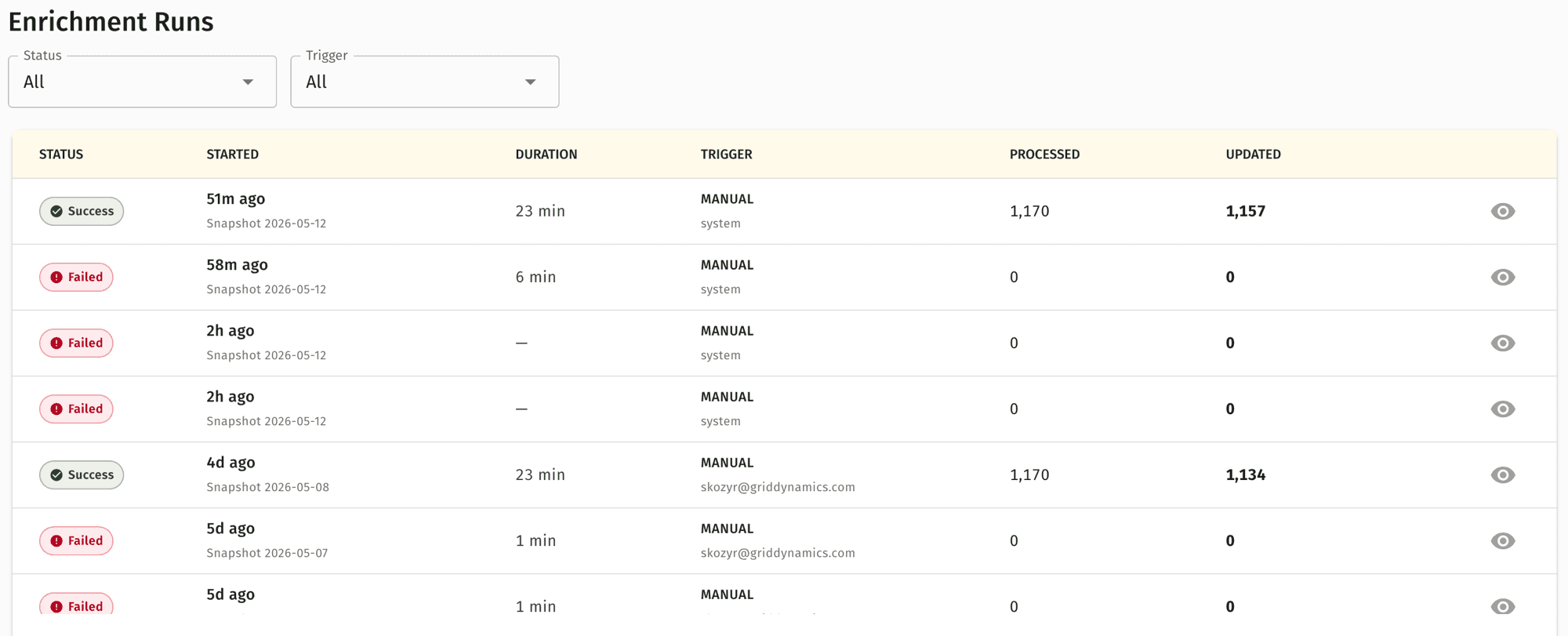
The Enrichment Runs screen lists all runs for the tenant in reverse chronological order. Use the Status and Trigger filters at the top to narrow the list. Each row shows:
| Column | What it shows |
|---|---|
| Status | Success, In Progress, or Failed |
| Started | How long ago the run started, with the catalog snapshot date below |
| Duration | How long the run took to complete |
| Trigger | MANUAL with the user email or system for automated runs |
| Processed | Total products evaluated in this run |
| Updated | Products that had at least one attribute value written |
Click the eye icon on any row to open the run detail view, which shows:
- A per-product-type breakdown of products processed and updated
- Stage-level progress (NLP, attribute extraction, category classification, synonym generation)
- For failed runs: an error message describing what went wrong, and a Re-trigger button to restart the run
How to use Enrichment Runs
Investigate a missing or stale attribute
Open Attribute Enrichment → Enrichment Runs.
Find the run that should have updated the product — typically the most recent completed run, or the run from the date the product was last modified.
Check the Status column. If the run shows Failed, the product was not updated — see Troubleshoot a failed run
below.
If the run shows Success, click the eye icon to open the run detail view.
Check the per-product-type breakdown to confirm the relevant product type was processed and had attributes written.
If the product type was processed but the attribute is still missing, open Review & Publish and search for the product — the value may be waiting in the Needs review queue.
Trigger an out-of-schedule run via the API
Runs execute automatically based on your workflow schedule configuration. If you need to trigger an additional run outside that schedule — for example, after a large catalog update or a data import — use the POST /api/v1/catalog/enrich endpoint. The run appears in the Enrichment Runs screen automatically once it starts. See the OpenAPI reference for request parameters and authentication.
API-triggered runs process the full catalog snapshot at the time they start. If you only need to update a small number of products, pass an inline product list in the request body to avoid a full catalog reprocess.
Troubleshoot a failed run
Click into the failed run to open the run detail view.
Read the error message at the top of the detail view. Common causes include a required ML model being temporarily unavailable
(MODEL_UNAVAILABLE), a malformed product feed (INVALID_FORMAT), or the enrichment quota for the tenant being exceeded (QUOTA_EXCEEDED).
If the error is transient (e.g., model unavailability), click Re-trigger to restart the run. The re-triggered run starts fresh against the current catalog snapshot.
If the error indicates a data or configuration issue, resolve the underlying problem before re-triggering — otherwise the run will fail again for the same reason.
A failed run does not overwrite or remove any previously published attribute values. The catalog remains in the state it was in before the failed run started. If runs are failing repeatedly at the same stage, contact your implementation team with the error code and job ID from the run detail view.
Quick example
A merchandiser notices that a product updated yesterday still shows a missing Color attribute in the storefront. They open Enrichment Runs and find yesterday's run completed successfully with 1,104 products processed. They click into the run and confirm the product's type (Men's Jackets) was included in the per-product-type breakdown — 312 products processed, 847 attributes enriched.
Since the run completed and the product type was covered, the attribute value exists — it's just waiting for approval. They open Review & Publish, search for the product, and find Color: Navy Blue sitting in the Needs review queue at MEDIUM confidence. One click to approve, and it's live.
Attribute Enrichment is part of the full MXP platform and is not available in Lightweight mode.
Related pages
- Review & Publish — approve, edit, or revert values generated by a run
- Configuration — set up which attributes to enrich before triggering a run
- OpenAPI Reference — trigger runs and check job status programmatically