Review & Publish
Browse AI-generated attribute values, review confidence scores, and publish or revert enrichments.
What it solves
After every enrichment run, the AI has generated hundreds or thousands of new attribute values across your catalog. Some of those values are correct and ready to go live immediately. Some need a human eye. The Review & Publish screen gives merchandisers a single place to see everything the AI touched — with enough context to act quickly and confidently.
High-confidence values are already published by the time you open the screen. What's left is a focused queue of the values that need your attention, not a manual review of the entire catalog.
When to use it
Open the Review & Publish screen after each enrichment run to:
- Work through the Needs review queue — values the AI generated below the confidence threshold
- Audit the Auto-applied tab to verify what was published automatically — by default, only values with HIGH confidence are auto-applied
- Investigate a specific product's enrichment status, for example when a shopper-facing attribute looks wrong in the storefront
You don't need to open this screen for every run. If your confidence threshold is well-tuned, the Auto-applied tab handles the bulk of updates automatically.
Key concepts
Auto-applied — values where the AI confidence score met or exceeded the configured threshold. These are published to the catalog immediately after the enrichment run, without requiring a manual approval step. By default, only HIGH confidence values are auto-applied; this threshold is configurable per product type.
Needs review — values where the AI confidence score fell below the threshold. These are held in a pending state until a merchandiser approves, edits, or reverts them. They do not affect the live catalog until acted on.
Confidence score — a signal from the AI indicating how certain it is about a generated value: HIGH, MEDIUM, LOW, or WRONG. WRONG indicates the AI detected an incorrect or conflicting value. The threshold that separates auto-applied from needs-review is configurable per product type in Configuration settings.
Original value — the attribute value that existed in the catalog before the enrichment run. Shown alongside the AI-generated value so you can compare directly.
Final Values — the attribute value that is or will be published. Shown as a chip in the review row. When the AI returned multiple candidates, all alternatives are visible so you can select the correct one rather than typing a replacement from scratch.
Revert — discards the AI-generated value and restores the previous value (or leaves the attribute empty if no previous value existed). Reverted values are not re-proposed in future runs unless the underlying product data changes.
How it works
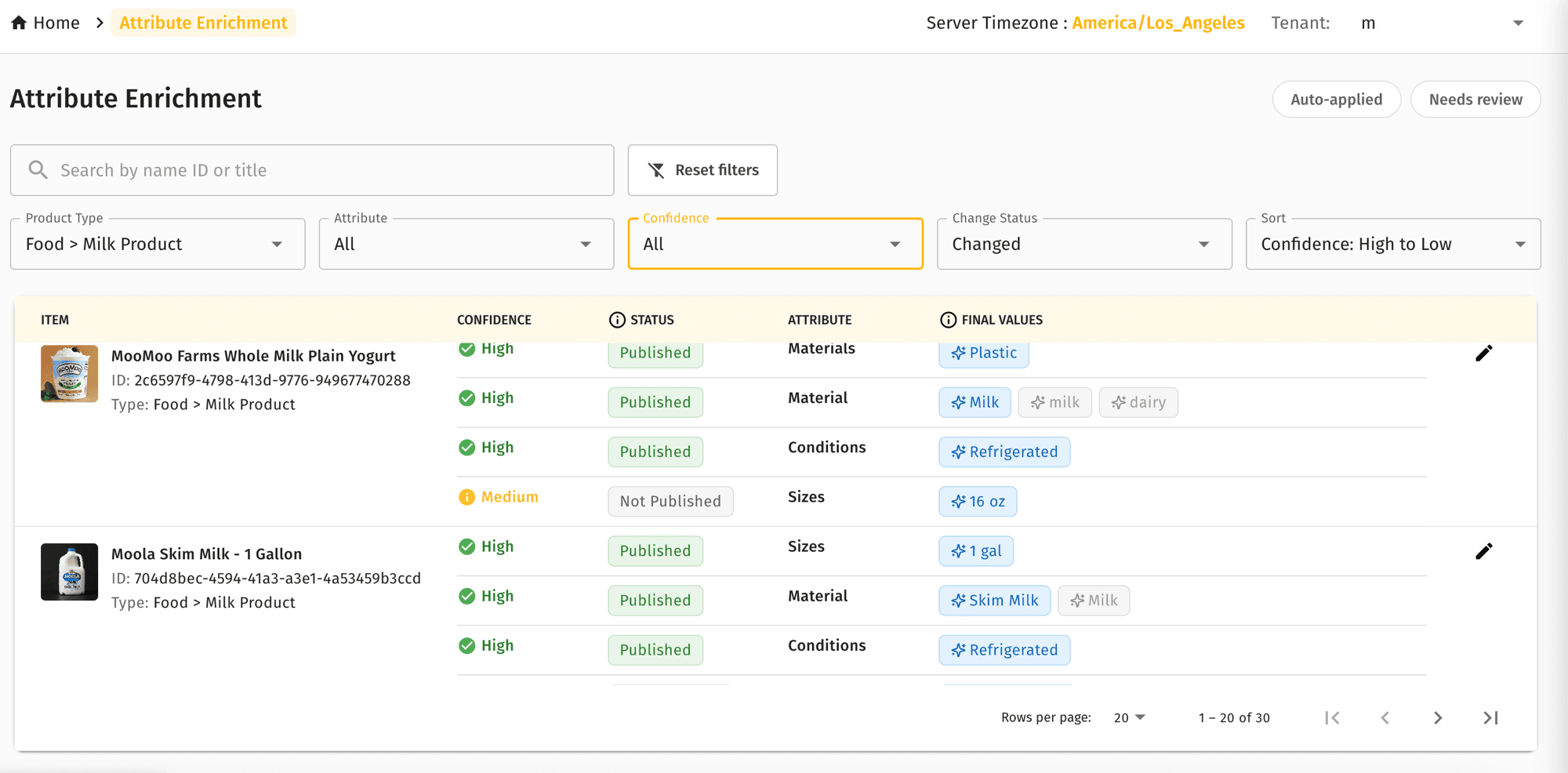
The review screen lists all products touched by enrichment, with one row per enriched attribute. Each row shows:
- Product — name, image thumbnail, and product type
- Attribute — the attribute that was enriched (e.g., Color, Material, Size)
- Final Values — the attribute value that is or will be published, shown as a chip
- Confidence — HIGH / MEDIUM / LOW / WRONG badge
- Status — Published or Not Published
Use the filters at the top to focus the list:
| Filter | What it does |
|---|---|
| Product Type | Scope the list to a specific category |
| Attribute | Show only rows for a specific attribute |
| Confidence | Filter by HIGH / MEDIUM / LOW / WRONG |
| Change Status | Switch between All, Changed, Unchanged |
How to review enriched attributes
Sort by Confidence: High to Low to review the borderline cases first. Values the AI was nearly confident about are usually faster to approve in bulk.
Audit auto-applied values
Select the Auto-applied tab.
Filter by Product Type or Attribute to focus your audit.
If you find a value that was published incorrectly, click Revert. The previous value is restored immediately.
Investigate a specific product
Search for the product by name or ID using the search bar.
The list narrows to all enriched attributes for that product across all runs.
Check each attribute's status and act individually as needed.
Review the Needs review queue
Select the Needs review tab. The list shows all values currently waiting for approval.
Use the Product Type or Attribute filters to focus on a specific area if the queue is large.
For each row, check the AI-generated value. If multiple candidates are shown, select the most accurate one.
Click Approve to publish the value to the catalog, or Revert to discard it.
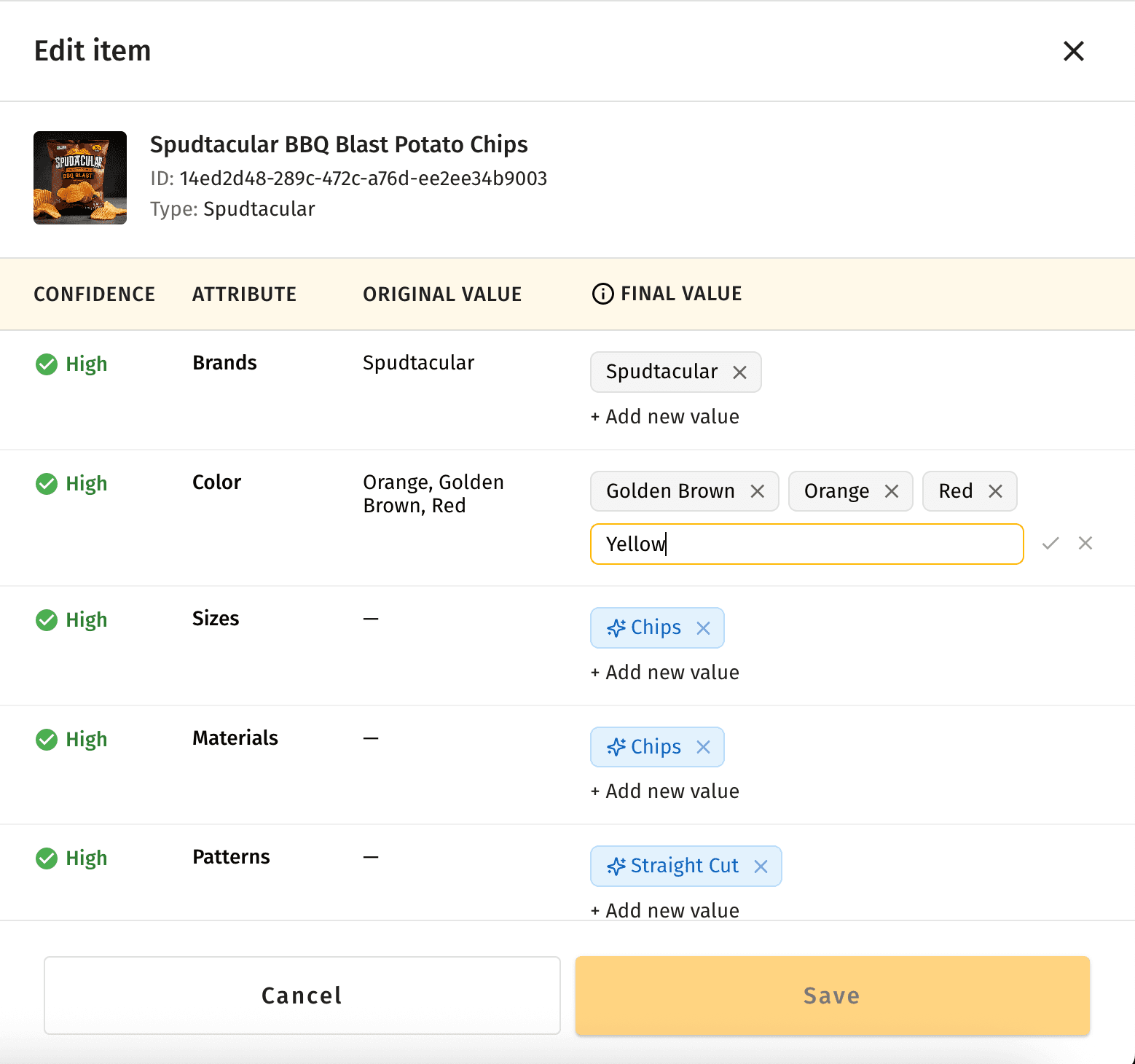
To edit a value before publishing — for example, to correct a minor error — click the edit icon on the row to open the Edit item panel. The panel shows the original value alongside the AI-generated final value for each attribute. Add, remove, or correct values, then click Save.
Quick example
A fashion retailer runs enrichment overnight on 4,000 products. The next morning, a merchandiser opens Review & Publish. The Auto-applied tab shows 3,412 values published with HIGH confidence — no action needed. The Needs review tab shows 188 values.
The merchandiser filters by Attribute: Color and sees 42 MEDIUM-confidence color values. They scan through: 38 look correct and are approved in a few minutes. Four show the wrong color — the AI picked up an accent color from the product image instead of the main colorway. Those are reverted and the correct values are typed in before approving.
Total time: under 15 minutes. The color facet is now accurate for all 4,000 products.
Attribute Enrichment is part of the full MXP platform and is not available in Lightweight mode.
Related pages
- Enrichment Configuration — set confidence thresholds and define which attributes to enrich per product type
- Enrichment Runs — check run history and re-trigger a failed run
- Attribute Enrichment — feature overview and how the two-phase validation model works