Recommendation Models
The five MXP RecSys model types, how to deploy them, and how personalization works
Models are the engines that generate product suggestions. Each model type is trained for a different shopper moment and is tuned and evaluated by the ML team before it reaches you. As a merchandiser, your job is to deploy the models you want to serve and assign them to placements — no technical release is involved.
Model types
MXP RecSys currently supports five model types:
Customers Also Viewed (CAV) — surfaces items other users browsed after viewing the current product. Best on product detail pages for an "explore similar" row.
Frequently Bought Together (FBT) — surfaces items commonly purchased alongside the current product. Best on the cart page for cross-sell.
Similar Items — surfaces products similar to the one being viewed, based on the product's own semantic embedding. Best on product detail pages to offer alternatives.
Good / Better / Best (GBB) — presents three price-tiered options within the same category. Best on category pages. See Good / Better / Best notes below.
GetBundle — recommends complementary products from related categories, grouped into a themed bundle (for example, for a brake pad: brake discs, brake fluid, and installation tools). Best on product detail pages for complete-the-setup cross-sell. See GetBundle notes below.
Want the internals — how each model is trained and served? See the Model Architecture reference.
Deploy vs. undeploy
A model only serves recommendations once it is deployed:
- Deploy — activates a model so it starts serving recommendations.
- Undeploy — deactivates a model so it stops serving.
Deployment status is managed from Recommendation → Recommendation Models in MXP UI.
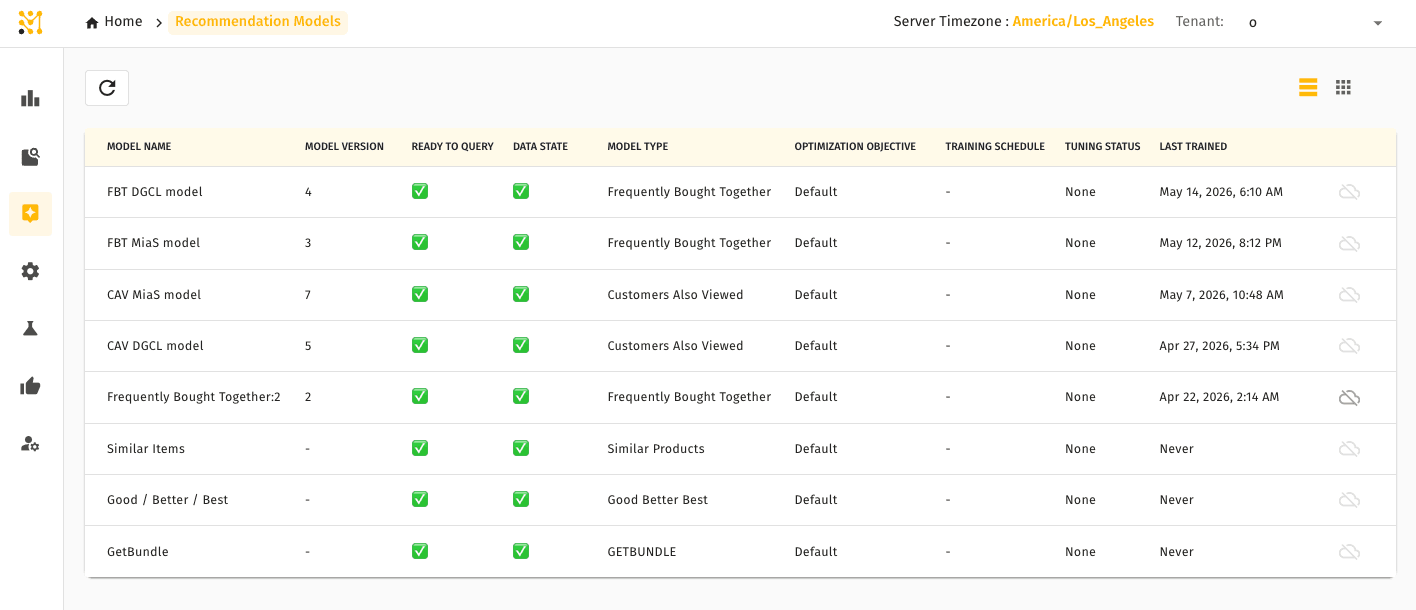
Deploying a model
Once a model is active, assign it to a Recommendation Container to start serving it on a placement.
Undeploying a model
A model that is still attached to a container cannot be undeployed. Remove the model from every container first, then undeploy it.
Personalization
For logged-in users, recommendations are automatically personalized based on their recent browsing history and brand preferences. Anonymous users receive the same base recommendations without personalization. This happens automatically — no configuration is needed on your end.
Good / Better / Best
The Good / Better / Best model presents shoppers with three product options at different price tiers within the same category:
- Good — budget-friendly (below the average price in the category)
- Better — mid-range (near the average price)
- Best — premium (above the average price)
When browsing history is available, the model personalizes the selection to the shopper's typical price range. With no history, it defaults to the most popular products in each tier.
GetBundle
The GetBundle model recommends complementary products from related categories, grouped into themed bundles. It operates at a product-type level using observed co-purchase behavior and functional-compatibility validation, so bundles stay sensible (for example, disc brake pads bundle with rotors, not drums).
- Precomputed plans — bundles are planned offline by grouping products into product-type sub-clusters, aggregating observed Frequently Bought Together co-purchase evidence, and validating functional compatibility.
- Live serving — when a shopper views a product, GetBundle retrieves the precomputed plan and fills it with concrete products through a live pipeline that applies personalization and brand-diversity.
- Cold-start handling — if a product has thin purchase history, the system automatically borrows bundle evidence from embedding-similar products, so even new or niche items get recommendations.
- Caching — bundles are served from cache for speed, including deliberately empty results, to avoid wasteful recomputation.
Bundle contents are determined automatically from catalog data and observed shopper behavior. You cannot manually edit bundle compositions in MXP UI.
Related pages
- Recommendation Containers — assign models to placements (full platform only)
- Lightweight Mode — models are fully available in Lightweight mode; placements are configured per serving configuration
- Recommendation Rules — boost, bury, or filter model output
- Model Architecture reference — how each model works internally
- Recommendations overview — how the full system fits together