Search Facet Management
Configure and manage facets for search result pages
What it solves
Search facets are one of the highest-impact surfaces in product discovery — they're how shoppers narrow 10,000 results to the 20 that are actually relevant to them. But facets are only useful if they reflect the attributes shoppers actually care about, appear in the right order, and contain consistent, clean values.
Out-of-the-box facets built from raw catalog data are often cluttered with redundant values, missing important attributes, and ordered in ways that don't match shopper behavior. Search Facet Management gives merchants control over exactly which facets appear on search result pages, in what order, and how their values are presented.
When to use it
- Initial storefront setup — define which attributes should be searchable facets before launching a search experience
- Adding a new filterable attribute — when attribute enrichment adds a new attribute to the catalog (e.g., material or fit), configure it as a facet so shoppers can filter by it
- Reordering facets — surface the highest-traffic filters first based on shopper behavior
- Cleaning up facet values — remove redundant or low-value facet entries that clutter the filter panel
- Separating search and browse experiences — search facets are configured independently from browse facets, so each surface can have its own filter set
Key concepts
Search facet — a filterable dimension shown on search result pages. Facets are derived from indexed product attributes — only attributes that have been indexed and have sufficient coverage across the catalog are useful as facets.
Facet ordering — the sequence in which facets appear in the filter panel. Typically ordered by shopper relevance: size, color, and price appear before niche attributes like sleeve length or closure type.
Facet value ordering — within a facet, the order of individual values (e.g., whether color values are ordered alphabetically, by frequency, or by a custom sequence).
Coverage — the percentage of products in the catalog that have a value for a given attribute. Low-coverage facets (e.g., an attribute present on only 5% of products) add clutter without helping most shoppers. Enrichment improves coverage — see Attribute Enrichment.
How it works
Search facets are configured via attribute_configuration.json and the Merch Module UI under Facet Management. The configuration defines which attributes are exposed as facets on search result pages, their display order, value ordering, and any value-level suppression rules.
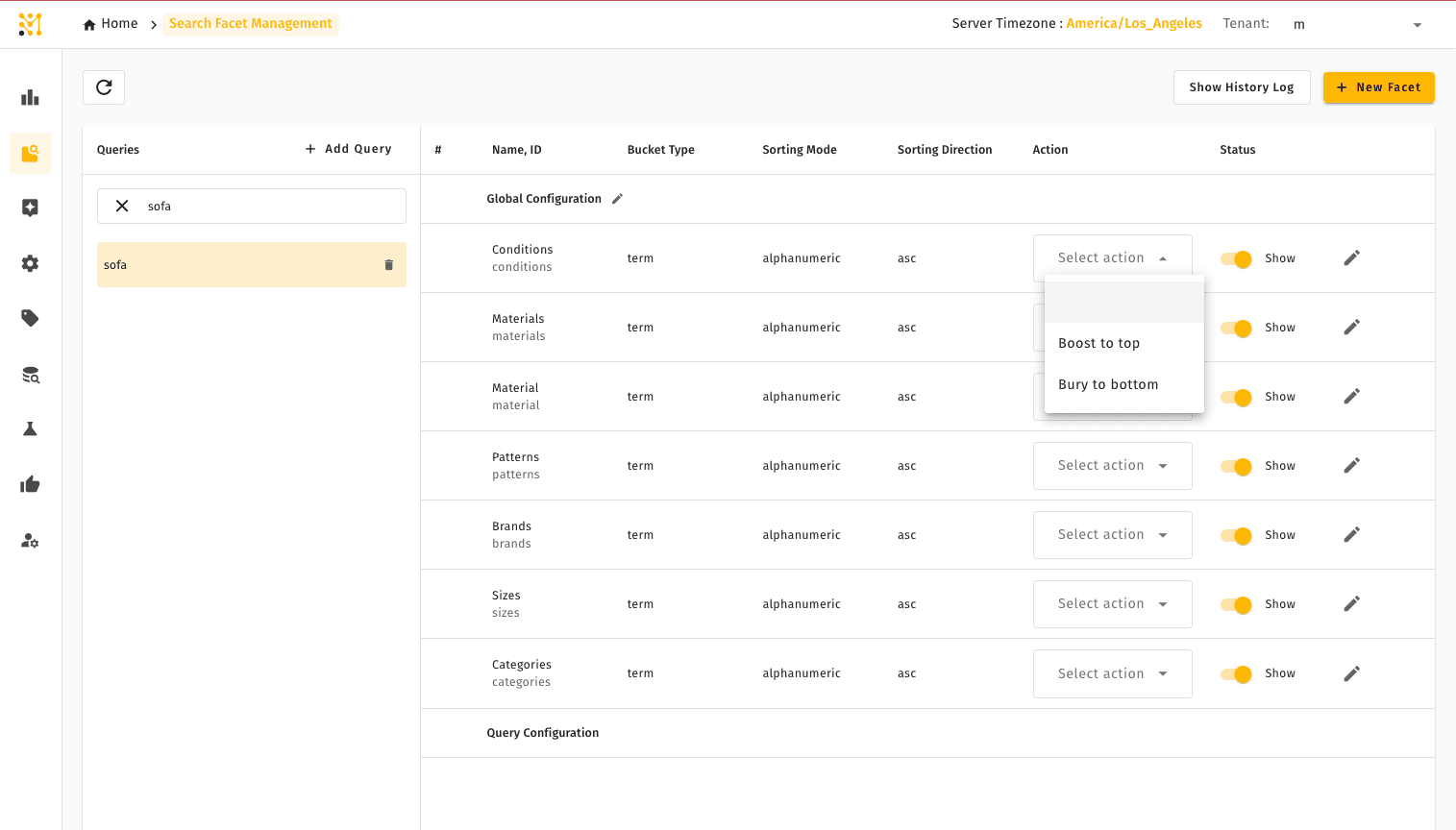
Use + New Facet to add an indexed attribute as a search facet and configure its label, ordering, and value behavior. Query-specific overrides can be added with + Add Query.
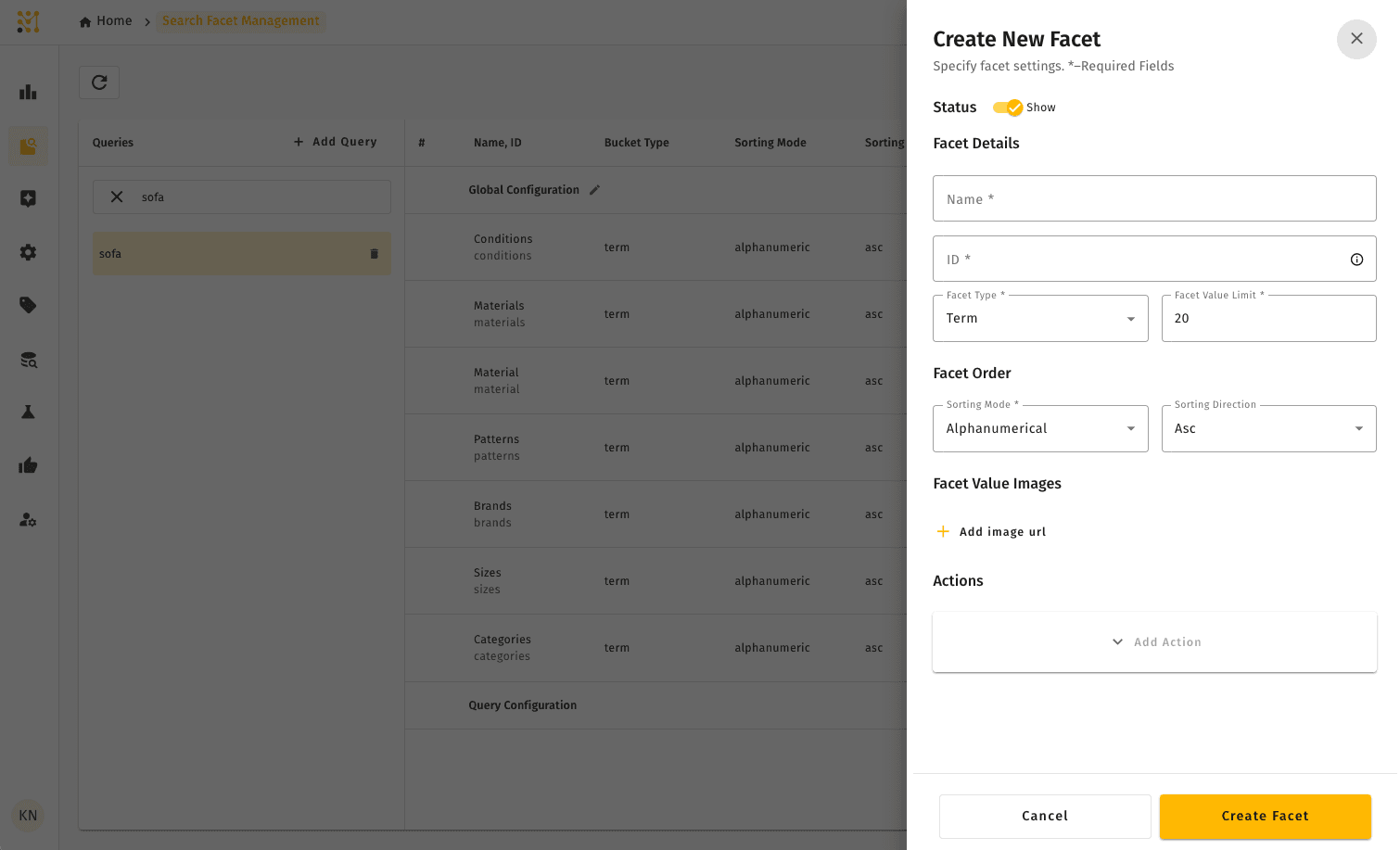
Search facets and browse facets are configured independently — changes to search facets don't affect category page facets, and vice versa. This allows different filter experiences for shoppers who search versus shoppers who browse.
Quick example
A fashion retailer launches attribute enrichment and gains 94% coverage on color, size, and material across their catalog — up from 35% before enrichment. They open Facet Management and add all three as search facets, ordering them Color → Size → Material below the existing Price facet.
Before the change, the color filter showed 12 inconsistent values ("Red", "RED", "Crimson", "Cherry"). After enrichment normalized the values and the facet was reconfigured, it shows 6 clean color options. Shoppers using the color filter increases by 40% in the following week.
Search Facet Management is part of the full MXP platform and is not available in Lightweight mode. In a Lightweight deployment, facet behavior is managed in Facet and Tile Controls instead.